
From Novice to Pro: Comprehensive Guide to Power BI Data Analytics

This course includes:
-
 30 Hrs + On-Demand Videos
-
 End – End Projects for
Practice
End – End Projects for
Practice
-
 Practical Training
-
 Access on any device
-
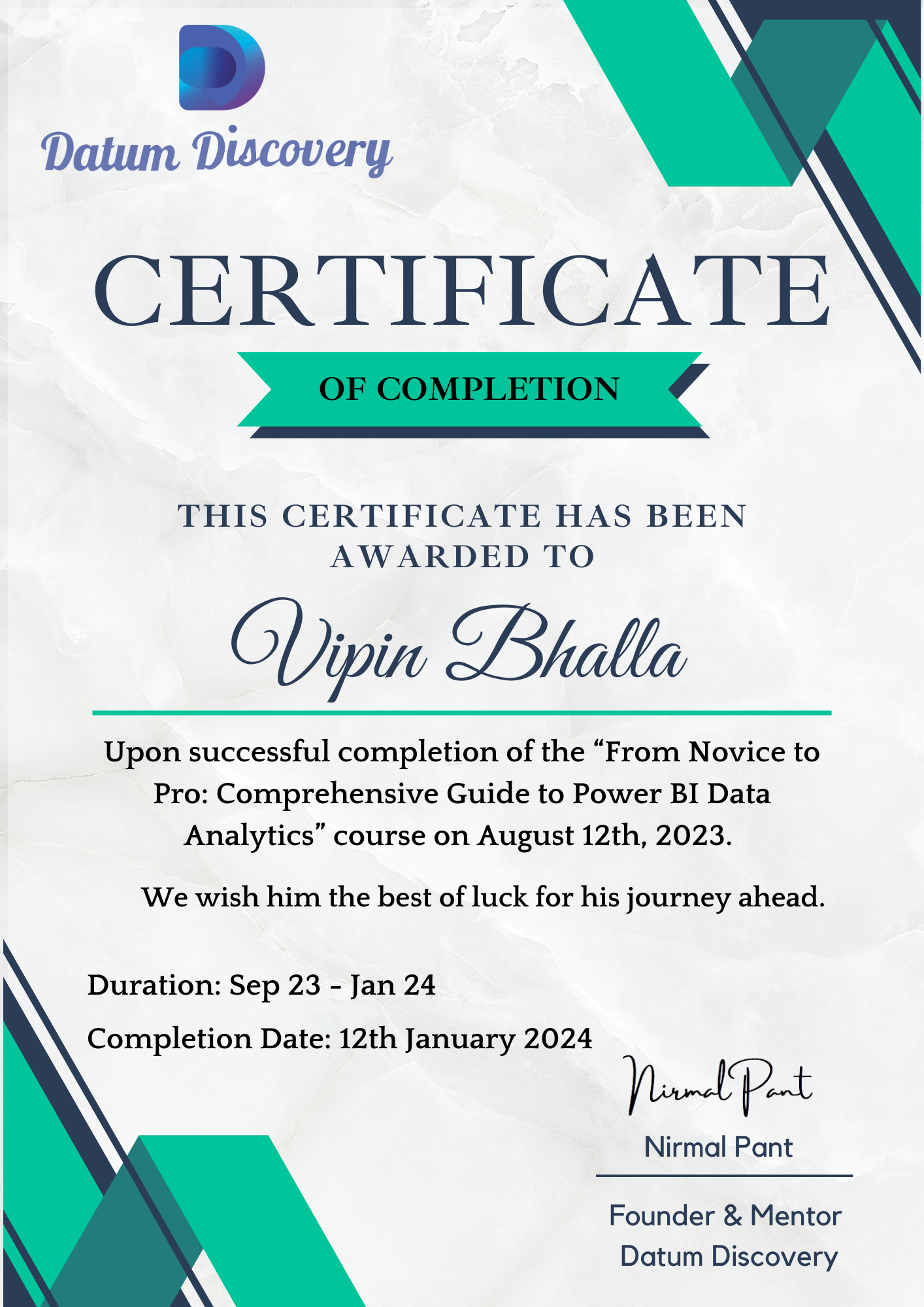
 Certificate of completion
-
 Free Lifetime access
With this practical beginner’s course, learn Power BI from scratch and prepare for data analyst, business analyst, or Power BI developer careers. The course offers a detailed project, giving you real organizational experience and business context.
Created by:

What You will learn?
- End-to-End Power BI Project Process: From Scoping to Deployment
- Effective Communication Techniques for Business Stakeholders
- Fundamentals of Business Functions: Finance, Sales, Marketing, and Supply Chain
- Domain Knowledge in the Consumer Goods Industry
- Cultivating a Problem-Solving Mindset
- Discover powerful AI tools and advanced techniques for data analysis and visualization.
- Create professional-quality business intelligence reports from scratch.
- Transform raw data into stunning, interactive visuals and dashboards.
What do learners say about this course?
I would like to extend my heartfelt thanks to Mr. Nirmal Pant for conducting an excellent Power BI training course.One of my friends referred me to Mr. Pant's Read more..
Sharayu Khanvilkar
The place where one's search comes to an end. And begins a journey of indepth learning of the Data Visualization Tool - Power BI. Nirmal Sir has been instrumental Read more..
Manisha S
Thanks for a great training course. Excellent and professional training course of Power BI. I found this Power BI training session excellent! Mr. Nirmal Pant's Read more..
Girija Naik
I found Mastering Power BI course on this platform very engaging and up-to-date.Mr. Nirmal Pant explanations are clear, making complex concepts easy to grasp. Read more..
Syed amjad ali
Learning Power BI under the guidance of Mr. Nirmal Pant was an exceptional experience. Mr. Pant’s deep expertise in the subject matter was excelled Read more..
Nickey Raj
This training has had a significant impact on my professional growth. I now feel confident in my ability to leverage Power BI for data-driven business landscape.In Read more..
Karthikeyan Vellaiyan
Thank you for a great course Nirmal. Personal Coaching with lots of opportunities to ask questions which made this enjoyable learning.This course has more Read more..
Meghana Bothe
What are the prerequisites for the course?
- No Coding Knowledge Required
- Beginner-Friendly Course
- No Prerequisites Needed
- Power BI Desktop, designed specifically for Windows/PC, is regrettably not yet available for Mac users. However, Mac users can still access Power BI through the Power BI Service, provided they have a work or school email address.
- It's important to note that certain advanced features within the Power BI Service may necessitate a Pro license, which offers a 60-day trial period, following which a monthly subscription fee of $9.99 will apply.
Key Skills Covered
- Data Cleaning using Power Query Editor
- Data Analysis using Data Modelling & DAX (Data Analysis Expression)
- Power BI Desktop
- Power BI Services
- Reports & Dashboards
- Dashboard Designing Techniques
Course Instructor

Course Curriculum
8 Modules | 214 Sessions
18 Sessions
-
 Course Introduction
-
Course Structure
-
What is Data
Analytic
-
Who is a Data
Analyst
-
Roles &
Responsibilities of Data Analyst
-
Steps of Data
Analytics
-
What are the Data
Analytics tools
-
Power BI vs Tableau
vs QlikView
-
Introduction to
Power BI
-
Why Power BI?
-
How to get it?
-
Power BI Journey
-
Building Blocks of
Power BI
-
Power BI components
-
Power BI Pricing
structure
-
The architecture of
Power BI
-
Introduction to
Power BI Desktop
-
Installation of
Power BI Desktop
11 Sessions
-
Overview of Power
BI Desktop
-
Data Sources in
Power BI
-
Using files (Excel,
pdf, CSV etc.) as a data source
-
Using SaaS
connectors
-
Extracting data
from folders, and databases
-
Types of Data
Connectors
-
Connecting to a
Database
-
Extracting Data
from the Web
-
Working with Azure
SQL database and database sources
-
Connecting to
Analysis Services
-
Other Data Sources
(OData, web, SharePoint, etc.)
65 Sessions
-
Shaping data using
Power Query Editor
-
Formatting data
-
Transformation of
Data
-
Understanding of
Data types
-
Data profiling for
data quality check
-
Working with
Parameters
-
Merge Query /
Tables
-
Append Query /
Tables
-
Group by of Data
(Aggregation of Data)
-
Applied steps
(Query Settings)
-
Duplicate and
Reference tables
-
Transpose of data
-
Fill Columns
-
Pivot & Un-pivot of
data
-
Custom Columns
-
Conditional Columns
-
Replace data from
the tables
-
Split columns
values
-
Move columns and
sorting of data
-
Detect data type,
count rows, and reverse rows
-
Promote rows as
column headers
-
Hierarchies in
Power BI
-
Power Query M
Language Purpose
-
Data QA & Profiling
Tools
-
Text Tools
-
Numerical Tools
-
Date & Time Tools
-
Change Type with
Locale
-
Index & Conditional
Columns
-
Data Source
Settings
-
Refreshing Queries
-
Automating queries
with parameters & functions
-
Power Query
Architecture and ETL
-
Data Types,
Literals & Values
-
Date, Time &
Structured Data
-
List, Record &
Table Structures
-
Power Query
Functions, Parameters
-
Invoke Functions,
Execution Results
-
Get Data, Table
Creations & Edit
-
Join Kinds, Advance
Editor, Apply
-
ETL Operations with
Power Query
-
Header Row
Promotion
-
Reverse Rows and
Row Count
-
Data Type Changes &
Detection
-
Replace Columns:
Text, non-Text
-
Replace Nulls: Fill
Up, Fill Down
-
Move Column
-
Extract, Format,
and Numbers
-
Date & Time
Transformations
-
Deriving Year,
Quarter, Month, Day
-
Add Column: Query
Expressions
-
Query Step Inserts
and Step Edits
-
Changing Parameters
in Power Query
-
Parameters Data
Types, Default Lists
-
Static/ Dynamic
Lists for Parameters
-
Removing Columns
and Duplicates
-
Convert Tables to
List Queries
-
Linking Parameters
and PBI Canvas
-
Multi-Valued
Parameter Lists
-
Creating Lists in
Power Query
-
Converting Lists to
Table Data
-
Advanced Edits &
Parameters
-
Data Type
Conversions, Expressions
-
Columns From
Examples, Indexes
-
Conditional
Columns, Expressions
58 Sessions
-
Deep dive into
Power BI Data Visualization
-
Data visualization
Techniques
-
Page layout and
Formatting
-
Power BI Desktop
Visualization
-
Introduction to
Visuals/ Charts / Graphs available in Power
BI (Free & Paid)
-
Cards & Multi-Row
Cards
-
Building &
Formatting Charts
-
Pie & Donut Chart &
Treemap
-
Line Charts
-
Bar & Column Chart
-
KPI Cards
-
Basic Filtering
Options
-
Table & Matrix
Visuals
-
Conditional
formatting
-
Top N Filtering
-
Top N Text Cards
-
Map Visuals
-
Report Slicers
-
Gauge Charts
-
Area Charts
-
Date Hierarchy
-
Drill Up & Drill
Down
-
Drill through
Filters
-
Editing Report
Interactions
-
Numeric Range
Parameters
-
Fields Parameters
-
Importing Custom
Visuals
-
Waterfall chart,
KPI, Donut chart, Scatter chart
-
Geographical data
visualization using Maps
-
Understanding Power
View and Power Map
-
Managing & Viewing
Roles
-
Mobile Layouts
-
Formatting and
customizing visuals
-
Visualization
Interaction
-
Custom
visualization in Power BI
-
Top-down and
bottom-up analytics
-
Page navigations
-
Bookmarks
-
Selection pane to
show/hide visuals
-
Comparing volume
and value-based analytics
-
Combination charts
(dual axis charts)
-
Filter pane
-
Slicers
-
Sync Slicers
-
Use of Hierarchies
in drill-down analysis
-
Theme for corporate
standards
-
Power BI template
for design reusability
-
Mastering the best
practices
-
Performance
analyzer in Power BI for monitoring the
performance of the report
-
Power BI Q&A
(Natural Language Query visual)
-
Tooltips and custom
tooltips
-
Conditional
formatting on visuals
-
Elements (Text,
Image, Shape & Buttons)
-
PBIX & PBIT Format
-
Visual Interaction
& Data Points
-
Disabling Visual
Interactions
-
Edit Interactions
(Format Options)
-
CSV & PDF Exports
36 Sessions
-
Data Modelling
Options In DAX
-
Database
Normalization
-
Primary & Foreign
Keys
-
Relationships vs.
Merged Tables
-
Creating Table
Relationships
-
Managing & Editing
Relationships
-
Relationship
Cardinality
-
Hiding Fields from
Report View
-
Data Formats &
Categories
-
Creating
Hierarchies
-
Detecting Relations
for DAX
-
Data Model & Star
Schema
-
Introduction of DAX
-
Why is DAX used?
-
DAX: Importance in
Real-time
-
Real World usage of
DAX
-
DAX Architecture,
Entity Sets
-
DAX Syntax
-
DAX Operators,
Special Characters
-
DAX Data Types
-
Calculated columns
using DAX
-
Measures using DAX
-
Implicit vs.
Explicit Measures
-
Quick Measures
-
Calculated tables
using DAX
-
Creating, and Using
Measures with DAX
-
Creating, and Using
Columns with DAX
-
Using Calculated
Columns in DAX
-
Using Aggregated
Measures in DAX
-
Quick Measures
-
DAX functions
Categories
-
Aggregation
functions
-
Date and time
functions
-
Filter functions
-
Logical functions
-
Text functions
Get Certified
Frequently Asked Question
The Power BI Course is a comprehensive, recorded training program designed to teach users how to effectively use Power BI for data analysis and visualization.
This course is intended for business professionals, data analysts, and anyone interested in learning how to use Power BI to analyze data and create interactive dashboards.
No prior experience with Power BI is required. However, basic knowledge of data analysis and familiarity with Excel can be helpful.
Once purchased, you will have lifetime access to the course materials, including any future updates.
The course covers a wide range of topics including data import and transformation, data modeling, creating and customizing visuals, DAX (Data Analysis Expressions), and sharing reports and dashboards.
Yes, the course can be accessed on multiple devices including desktops, laptops, tablets, and smartphones.
Yes, you can reach out to the course instructors or join the community forum for support and to ask questions.
Yes, the course includes practical, hands-on projects and assignments to help you apply what you’ve learned and gain real-world experience.
Yes, upon successful completion of the course, you will receive a certificate of completion.
Typically, the course videos are not available for download to ensure content protection, but you can access them online anytime through the course platform.
The course is self-paced, allowing you to complete it at your own speed. On average, it takes about 20-30 hours to go through all the materials and complete the hands-on projects.
Yes, the course content is regularly updated to include the latest features and best practices in Power BI.
Absolutely! The skills and knowledge gained from this course will help you prepare for Microsoft Power BI certification exams, such as the PL-300: Microsoft Power BI Data Analyst.
You will need a computer with internet access, Power BI Desktop (which is free to download from the Microsoft website), and optionally, Excel for some of the exercises.
Yes, the course covers both Power BI Desktop for creating reports and the Power BI Service for sharing and collaborating on dashboards.
The lessons are structured into modules, each containing video lectures, practical exercises, quizzes, and projects. This ensures a balanced approach to learning both theoretical concepts and practical skills.
If you experience any technical issues, you can contact the course provider’s technical support team for assistance. They are typically available via email or live chat.
This course includes:
-
30 Hrs + On-Demand Videos
-
End – End Projects for Practice
-
Practical Training
-
Access on any device
-
Certificate of completion
-
Free Lifetime access
